How to Hide WordPress Admin Menu Items by User Role
A client who only writes blog posts doesn’t need Tools, Settings or twelve plugin menus in their dashboard. Hiding what people don’t use makes WordPress easier to work with and cuts support questions. Here’s how to do it with code and without, and one important thing to know about what “hiding” means.
Hiding is not the same as blocking
Removing a menu item only removes the link. If a user’s role has the capability to edit settings, they can still open the page by typing its URL. To truly block access, change the role’s capabilities (for example with a role editor plugin). Hiding menus is about a clean interface; capabilities are about security. Most sites want both: capabilities for what users may do, hidden menus for what they don’t need to see.
Option 1: with code
remove_menu_page() hides top-level menus, and remove_submenu_page() hides sub-items. Run it on admin_menu with a late priority, and check the user’s role:
add_action( 'admin_menu', function () {
    $user = wp_get_current_user();

    // Only for editors.
    if ( ! in_array( 'editor', (array) $user->roles, true ) ) {
        return;
    }

    remove_menu_page( 'edit.php?post_type=page' ); // Pages
    remove_menu_page( 'edit-comments.php' );        // Comments
    remove_menu_page( 'tools.php' );                // Tools
    remove_submenu_page( 'themes.php', 'widgets.php' ); // Appearance → Widgets
}, 999 );
To find the right slug for a plugin’s menu, hover its link in the admin menu: the part after wp-admin/ (for example admin.php?page=some-plugin → some-plugin) is what you pass.
The admin top bar is separate. Remove its items with admin_bar_menu:
add_action( 'admin_bar_menu', function ( $bar ) {
    $bar->remove_node( 'comments' );
    $bar->remove_node( 'new-content' );
}, 999 );
This works well for a few fixed rules. It gets harder when you have several roles, plugins adding new menus after updates, or when a non-developer needs to change the rules.
Option 2: without code
WP Admin Cleaner lets you do the same from a settings screen:
- Go to Tools → WP Admin Cleaner.
- Pick the role you want to configure (Administrator, Editor, Author, Shop Manager…). Roles added by plugins like WooCommerce or Easy Digital Downloads appear automatically.
- Tick the items to hide in the Left Bar (admin menu), the Top Bar – Backend and the Top Bar – Frontend.
- Save. Everyone with that role gets the cleaner dashboard.
It can also hide items for your own user only. That’s handy when several admins share a site: a designer can hide plugin settings they never touch, while the developer keeps everything, without affecting each other. Administrator settings apply to every admin except the super admin, so you can’t lock yourself out.
Tips
- Start from the user’s job. List what an editor does every week (write posts, upload media) and hide the rest.
- Test as that user. Log in with a test account of that role, or use a user-switching plugin.
- Recheck after installing plugins. New plugins add new menus.
- Combine with capabilities for anything that must really be off-limits.
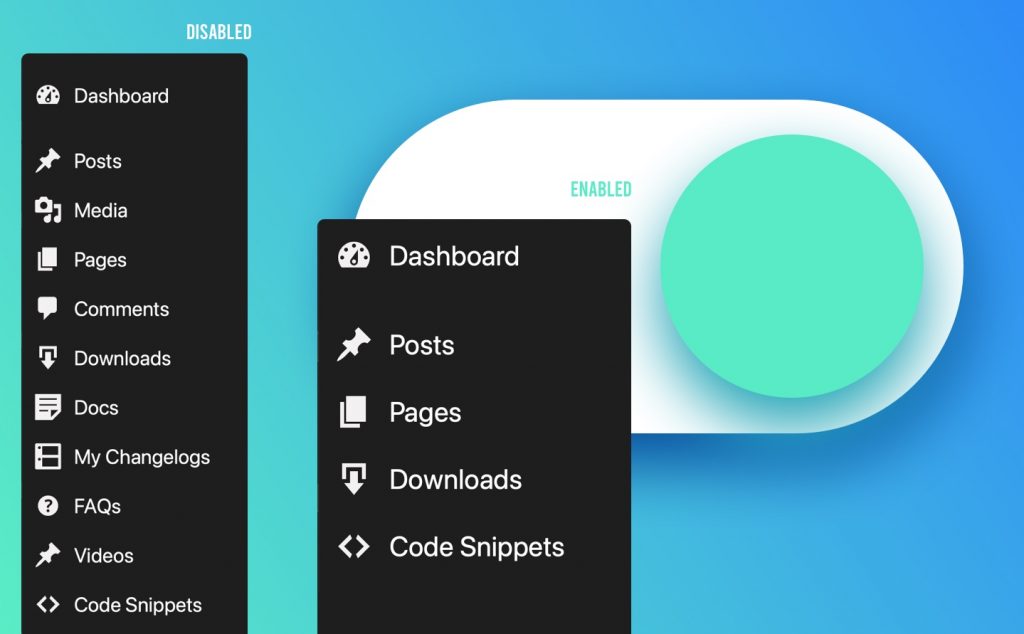
A clean dashboard for every role
WP Admin Cleaner hides admin menus and top-bar items per role or per user, without code.
Related guides
- How to Build a Custom WordPress Dashboard for Clients: Replace the default dashboard with your own page.
- How to Customize the WordPress Login Page: Your logo, colors and a safer login URL.
- How to Reorder the WordPress Admin Menu and Add Custom Links: Your most-used pages first, plus custom links.
- How to Enable Dark Mode in the WordPress Admin: A dark dashboard and editor, per user.
Browse all WordPress tutorials.