How to Reorder the WordPress Admin Menu and Add Custom Links
Plugins add their menus wherever they like, and after a while the WordPress admin menu is a long list where the pages you use every day are buried. Reordering it, and adding shortcuts to the pages you really need, saves clicks all day.
Reordering with code
WordPress lets you define a custom order with two filters. List the menu slugs in the order you want; anything you don’t list follows after:
add_filter( 'custom_menu_order', '__return_true' );
add_filter( 'menu_order', function () {
    return [
        'index.php',                 // Dashboard
        'edit.php',                  // Posts
        'edit.php?post_type=page',   // Pages
        'upload.php',                // Media
        'separator1',
        'themes.php',                // Appearance
        'plugins.php',
    ];
} );
The order applies to everyone, and you need to look up each plugin’s slug.
Adding a custom menu link with code
add_menu_page() adds a top-level item. To link to an existing URL (for example your orders screen with a filter, or an external support desk), add a page and redirect, or add an item whose slug is the URL:
add_action( 'admin_menu', function () {
    add_menu_page( 'Support', 'Support', 'edit_posts', 'https://example.com/support', '', 'dashicons-sos', 3 );
} );
Doing both without code
Menu order. Drag menu items into the order you want and save. The order applies to your user only, so a developer can have Scripts Organizer and Plugins at the top, while a designer on the same site keeps Posts, Media and Pages first. A Reset Order button restores the default.
Custom menu items. Open Custom menus → Register menu item and set:
- Name
- Icon: pick a Dashicon, or paste an SVG (use
currentColorso it matches the menu). - Link, optionally opening in a new tab.
- Priority (position in the menu).
- Parent, to group several custom items under one.
- Capability, using WordPress’s roles and capabilities, so only the right users see it.
- Only for me, if the link is just for your own workflow.
Ideas
- A “New invoice” link straight to your billing tool.
- A “Help” item that opens the client’s documentation.
- Your most-used plugin screen, one click from the top.
Combine with hiding the menu items people don’t need.
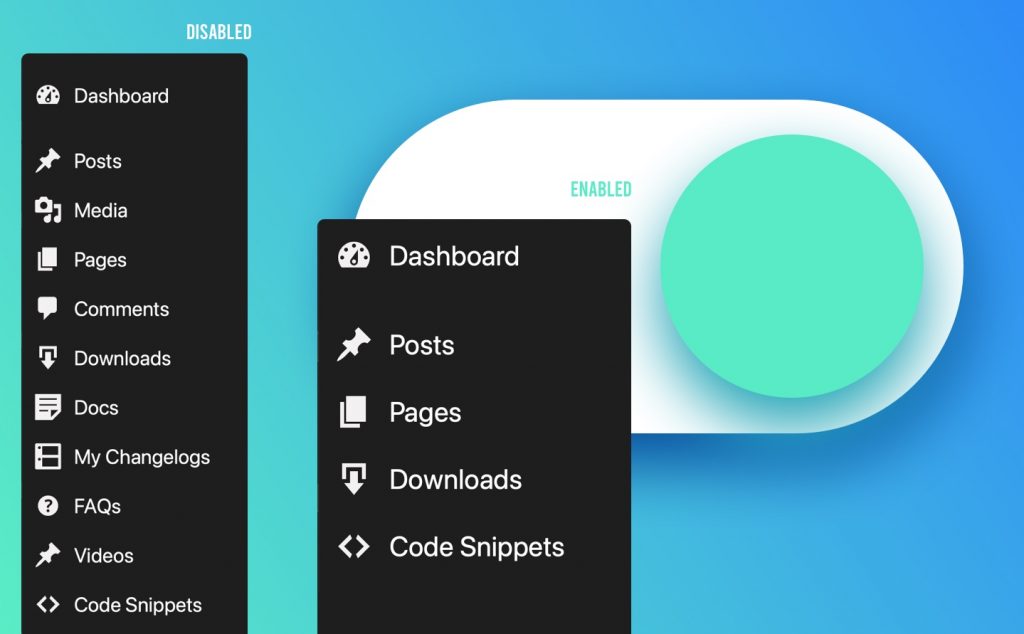
An admin menu that fits how you work
WP Admin Cleaner: per-user menu order, custom menu links with icons, and hidden menus per role.
Related guides
- How to Enable Dark Mode in the WordPress Admin: A dark dashboard and editor, per user.
- How to Build a Custom WordPress Dashboard for Clients: Replace the default dashboard with your own page.
- How to Customize the WordPress Login Page: Your logo, colors and a safer login URL.
Browse all WordPress tutorials.