How to Enable Dark Mode in the WordPress Admin
If you spend hours a day in WordPress, a bright white admin at night is tiring. WordPress has no real dark mode built in, but you can get close, and with the right setup each admin chooses for themselves.
Option 1: WordPress’s admin color schemes
Go to Users → Profile → Admin Color Scheme and pick Midnight or Coffee. It darkens the admin menu and top bar only. Content areas, list tables and the block editor stay white. It’s per user, but it’s not dark mode.
Option 2: your own admin CSS
Load a stylesheet in wp-admin with admin_enqueue_scripts, or print styles with admin_head:
add_action( 'admin_head', function () {
    echo '<style>
        body.wp-admin, #wpcontent, #wpfooter { background: #1d2327; color: #dcdcde; }
        .wrap h1, .wrap h2 { color: #fff; }
    </style>';
} );
Making the whole admin dark this way is a lot of work: list tables, forms, notices, every plugin’s screens. And the block editor runs in an iframe with its own styles, so it needs separate CSS. This code also changes the admin for every user, whether they want it or not.
Option 3: dark themes with WP Admin Cleaner
WP Admin Cleaner includes ready-made dark themes:
- Admin dark theme for the dashboard and admin screens.
- Gutenberg dark theme for the block editor, including the editor iframe. If you use Oxygen with its Gutenberg integration, enable it there too.
- Per user: turning on the dark theme applies only to your own account. Other admins keep their light admin until they choose otherwise.
- Custom admin CSS on top: highlight menu items you use most, recolor sections using their CSS IDs, and fine-tune anything the themes don’t cover.
Tips
- Check plugin screens after switching; a few plugins hard-code white backgrounds. Fix those with a line of custom CSS.
- Keep contrast high: dark gray backgrounds (
#1d2327) with light gray text are easier on the eyes than pure black and white. - Match your editor to your front end if you design in the block editor, so colors look the way visitors will see them.
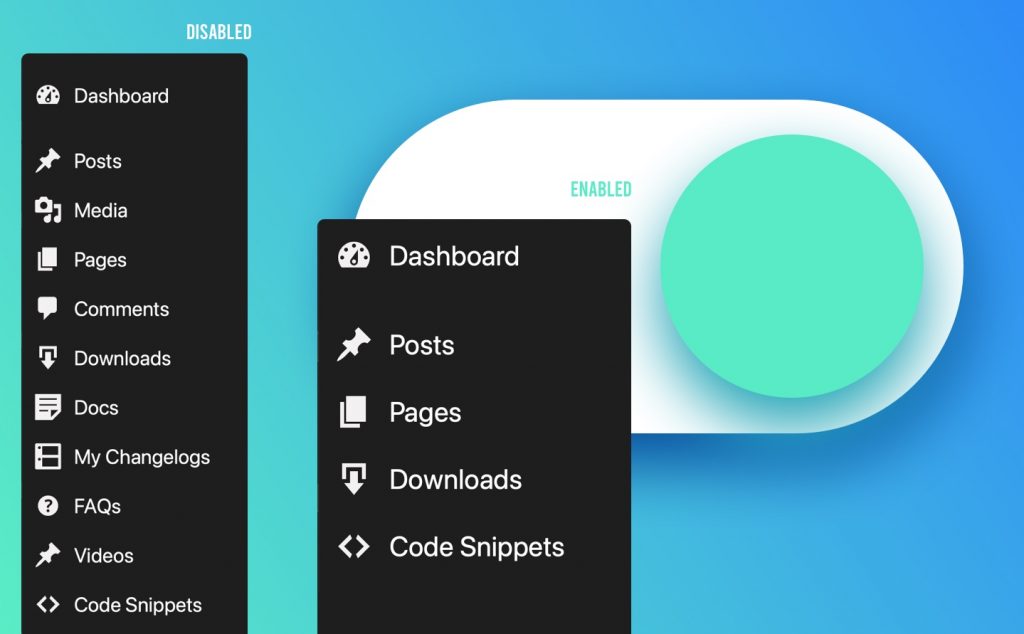
A dark, tidy WordPress admin
WP Admin Cleaner: per-user admin and Gutenberg dark themes, custom admin CSS, trimmed menus and more.
Related guides
- How to Hide WordPress Admin Menu Items by User Role: A cleaner WordPress dashboard for every user role.
- How to Build a Custom WordPress Dashboard for Clients: Replace the default dashboard with your own page.
- How to Customize the WordPress Login Page: Your logo, colors and a safer login URL.
- How to Reorder the WordPress Admin Menu and Add Custom Links: Your most-used pages first, plus custom links.
Browse all WordPress tutorials.