WordPress Code Snippet Plugins Compared (2026)
A code snippet plugin is where the small custom code of a WordPress site lives: a PHP filter, a tracking tag, a few lines of CSS. Instead of editing functions.php, you get one screen with every snippet, an on/off switch and (hopefully) protection against a typo taking the site down. There are several good ones; they differ in what they optimize for. We make Scripts Organizer, so we’ve tried to be fair about where the others are strong.
The options at a glance
| Strength | Keep in mind | |
|---|---|---|
| WPCode | The most installed of the five (3+ million active installations on WordPress.org, October 2026), polished UI, a library of ready-made snippets, a dedicated header & footer screen, deactivates snippets that cause fatal errors | Many features are in the paid version |
| Code Snippets | Long track record (1+ million active installations, October 2026), simple and familiar, free on WordPress.org, a cloud library in Pro | Editor and conditions are basic in the free version |
| WPCodeBox | Full IDE feel (Monaco editor), revisions with diff views, export snippets as a plugin | Premium only |
| FluentSnippets | Free, stores snippets as files instead of the database (no extra queries per page) | Simple editor, no snippet library or cloud sync |
| Scripts Organizer | Code blocks that combine header, footer, PHP and shortcode; SCSS with partials; date/time scheduling; detailed page conditions; safe mode | Premium; its strength is organizing a site’s code, not a public snippet library |
What to compare
1. Safety. Can one bad PHP snippet take the site down? Look for syntax checks on save, automatic deactivation or a safe mode, and a URL or setting to recover when wp-admin itself is broken.
2. Storage. Snippets in the database are easy to back up with the database. Snippets as files avoid a database lookup and can be version-controlled. Both work.
3. Where code runs. Everywhere, admin only, specific pages, post types, taxonomies? Exclusions (“all pages except…”)? Schedules? The more precise, the less code loads where it isn’t needed.
4. Languages. PHP, HTML, CSS and JavaScript are standard. SCSS support, with partials, matters if you write real stylesheets rather than tweaks.
5. Editor. Syntax highlighting is a minimum. An IDE-like editor (autocomplete, multiple cursors, Emmet) matters if you write a lot of code.
6. Moving code between sites. Export/import, cloud libraries, or exporting as a plugin.
Where Scripts Organizer fits
Scripts Organizer is built for people who keep a lot of site-specific code:
- A Code Block can hold Header, Footer and PHP (or a Shortcode) together, so the CSS, JS and PHP of one feature stay in one place.
- HTML, CSS, SCSS, JavaScript and PHP; CSS/JS inline or as generated files; SCSS partials you merge in a chosen order.
- PHP is stored as files, not in the database, and validated on save, with safe mode (forceable via
?scorg_safemode=yes). - Conditions by page, post, post type and taxonomy, with exclusions, plus scheduling by weekday, date, date range and time.
- Hot reload, on/off toggles and export.
How to choose
- A few snippets and a library to start from: WPCode.
- Free, simple, proven: Code Snippets, or FluentSnippets if you want file-based storage.
- You write a lot of code and want an IDE: WPCodeBox.
- You run a site’s CSS/SCSS, JS and PHP from the dashboard, with conditions and schedules: Scripts Organizer.
Whatever you pick, follow the basics in how to add custom code to WordPress safely.
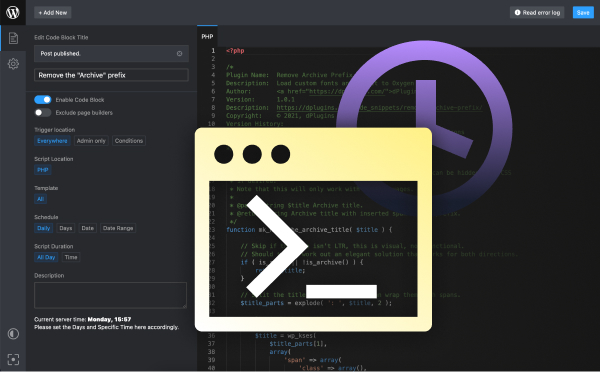
Organize all of a site’s custom code
Scripts Organizer: code blocks with header, footer and PHP, SCSS partials, conditions, scheduling and safe mode.
More comparisons
- Oxygen vs Gutenberg in 2026: Which Should You Build With?
- Bricks vs Gutenberg: Which Is Better for Your WordPress Site?
- Elementor vs Gutenberg: Which Should You Use in 2026?
- Page Builder or Block Theme for Client Sites?
- ACF Blocks vs Native Gutenberg Blocks: Which Should You Use?
- Custom Gutenberg Blocks: React or PHP?
- Self-Hosted Plugin Updates vs WordPress.org: Which Is Right for Your Plugin?