How to Add Custom Code to WordPress Safely
Put theme-only code in a child theme’s functions.php, site behaviour in a small plugin or a must-use plugin, and code that clients edit or that runs on a schedule in a snippet manager that catches fatal errors.
Sooner or later every WordPress site needs a bit of custom code: a tracking script in the header, a few lines of CSS, a PHP snippet from a tutorial that changes how excerpts work. Where you put that code decides whether it survives updates, and whether one typo can take the whole site down.
The four kinds of custom code
| Kind | Example | Where it runs |
|---|---|---|
| Header code | Analytics tag, meta tags, preconnects | Inside <head> |
| Footer code | Chat widget, a small script | Before </body> |
| CSS | Style tweaks | Page styles |
| PHP | Hooks and filters, e.g. change the excerpt length | On the server |
HTML, CSS and JavaScript can at worst break how a page looks. PHP can break the whole site, including wp-admin, because a fatal error stops WordPress from loading. Treat PHP with the most care.
Option 1: the theme’s functions.php (avoid)
It’s the classic advice, and the most fragile place:
- Edits are lost when the theme updates. At minimum use a child theme.
- Switching themes silently removes your code.
- A typo in the theme editor can lock you out of wp-admin, and you’ll need FTP to fix it.
Option 2: a small custom plugin
Put your PHP in its own plugin, a folder in wp-content/plugins/ that you activate like any other:
<?php
/**
 * Plugin Name: Site tweaks
 */

// Shorter excerpts on archive pages.
add_filter( 'excerpt_length', function () {
    return 30;
} );
This survives theme changes and is easy to keep in Git. It’s a good choice for developers. The downsides: you need file access (SFTP or SSH) for every change, and there’s no on/off switch for a single snippet.
Option 3: a must-use plugin
A must-use plugin is a .php file in wp-content/mu-plugins/. WordPress loads it automatically on every request, and it can’t be switched off from wp-admin, which makes it a good home for code a client must never deactivate.
Two things to know, both from the WordPress documentation:
- WordPress “only looks for PHP files directly inside the mu-plugins directory”. Code in a subfolder needs a small loader file next to it.
- Must-use plugins get no update notifications and don’t run activation hooks.
And they are not covered by recovery mode (see below).
Option 4: a code snippets plugin
Snippet plugins store each piece of code separately, with an on/off toggle, and let you add header/footer code without touching templates. This is the most practical option for most sites, as long as the plugin protects you from your own typos. For a plugin-by-plugin view, see WordPress code snippet plugins compared.
A snippet plugin is not a replacement for a site plugin. It is a management layer, and the question is whether it stores your code as files you can version, or only as rows in the database.
What happens when the code has a fatal error?
- Theme or regular plugin: since WordPress 5.2, recovery mode “pauses error-causing plugins or themes”, so you can log in and fix the code.
- Must-use plugin: not covered. Recovery mode only matches errors to files in the plugins folder and to themes, so a fatal error in
mu-pluginshas to be fixed over SFTP or SSH. - Snippet plugin: depends on the plugin. Look for a syntax check on save and a safe mode you can reach when wp-admin is broken.
To see what went wrong, enable and read the WordPress error log.
Which one should you pick?
| functions.php | Custom plugin | Must-use plugin | Snippet plugin | |
|---|---|---|---|---|
| Survives a theme switch | No | Yes | Yes | Yes |
| Fatal error | Recovery mode | Recovery mode | Not covered, needs SFTP/SSH | Depends on the plugin |
| Version control (Git) | With the theme | Yes | Yes | Only if it writes files |
| Who can edit | Developer with file access | Developer with file access | Developer with file access | Anyone with access to the plugin screen |
| On/off switch | No | Whole plugin | No | Per snippet |
| Multisite | Per theme | Per site or network-activated | Always on for every site | Per site |
Three common cases:
- Code that only makes sense with this theme (image sizes, theme supports): the child theme’s
functions.php. - Site behaviour that must never be switched off (a custom post type, a security rule): a must-use plugin, tested on staging first.
- Tracking tags, CSS tweaks and small PHP changes that change often: a snippet plugin.
Rules that prevent disasters
- Test on staging first, or at least at a quiet time, never on a busy production site at 5 pm on Friday.
- One snippet per job, with a clear name. “Shorter excerpts” beats “misc fixes”.
- Wrap code that depends on a plugin:
if ( function_exists( 'get_field' ) ) { … }, so deactivating that plugin doesn’t cause a fatal error. - Load code only where it’s needed. A script for the contact page doesn’t belong on every page.
- Have a way back: a backup, and a way to disable a snippet even if wp-admin is broken.
How Scripts Organizer handles this
Scripts Organizer is the code manager we build at DPlugins, developed by Marko Krstić. It is a code editor inside WordPress built around these rules:
- One “code block”, several locations. Each code block can hold Header, Footer and PHP code (or a Shortcode) together, so related code stays in one place, for example the CSS and JavaScript of one animation.
- Languages: HTML, CSS, SCSS and JavaScript for header/footer, and PHP. CSS and JS can be output inline or as generated files.
- PHP isn’t stored in the database. It’s written to files in
wp-content/uploads/scripts-organizer/, and it’s validated every time you save. - Safe mode. If a PHP snippet has an error, Scripts Organizer switches to safe mode and shows you the error so you can fix it. If something still goes wrong, you can force safe mode by adding
?scorg_safemode=yesto your site URL while logged in as admin. - Conditions. Run a code block everywhere, only for admins, or only on selected pages, post types or taxonomy archives, with exclusions and date/time scheduling.
- Toggles and export. Switch any code block on or off from the list, and export code blocks to move them to another site.
Related: how to disable scripts on specific pages and how to add code to the WordPress header and footer.
FAQ
Is it bad practice to put code in functions.php?
Not for code that belongs to the theme. It is the wrong place for behaviour that must survive a theme switch, because switching themes removes it.
What is a must-use plugin (mu-plugin) in WordPress?
A PHP file in wp-content/mu-plugins/ that WordPress loads automatically. It has no activate button, can’t be disabled from wp-admin, isn’t loaded from subfolders without a loader file, and isn’t paused by recovery mode.
What happens if a plugin causes a fatal error?
Since WordPress 5.2, recovery mode pauses the plugin or theme that caused the error so an administrator can log in and fix it. Must-use plugins are the exception.
Can I keep code snippets under version control?
Yes, if the tool writes them as files. Scripts Organizer writes PHP to files in wp-content/uploads/scripts-organizer/; snippets stored only in the database need an export first.
Sources
- Must Use Plugins, WordPress Developer Resources (read 2 October 2026)
- WordPress 5.2 “Jaco”, WordPress.org News, 7 May 2019 (read 2 October 2026)
WP_Recovery_Mode, WordPress core source (read 2 October 2026)- Safe mode, Scripts Organizer documentation (read 2 October 2026)
Tested with WordPress 7.1.2 (the excerpt_length example).
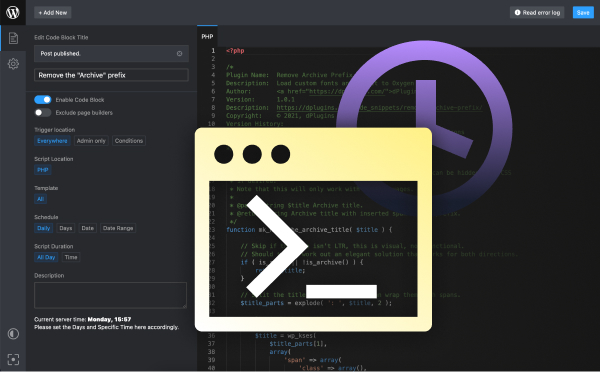
A safe home for your custom code
Scripts Organizer: PHP, CSS, SCSS and JS in one editor, with conditions, scheduling, toggles and safe mode.
Related guides
- How to Load CSS and JavaScript Only Where It's Needed in WordPress: Conditional loading for your own CSS and JS.
- How to Schedule CSS and JavaScript by Date and Time in WordPress: Banners and styles that switch on and off by themselves.
- How to Use SCSS in WordPress Without a Build Tool: Variables, nesting and partials, compiled in WordPress.
- How to Create a Custom Shortcode in WordPress: Reusable [shortcodes] with attributes, done right.
Browse all WordPress tutorials.