How to Add Code to the WordPress Header and Footer
Analytics tags, domain verification meta tags, ad pixels, chat widgets: many services tell you to “paste this code into the <head>” or “before the closing </body>“. In WordPress you shouldn’t edit theme templates to do that. Here’s the right way.
Head or footer?
Put it in the <head> | Put it before </body> |
|---|---|
| Verification meta tags | Chat widgets |
| Analytics (GA4 gtag, Plausible…) | Non-critical scripts |
| Preconnect / preload hints | Tracking that doesn’t need to run first |
| Critical CSS | Anything that can wait until the page is shown |
Scripts in the footer don’t block the page from displaying, so prefer the footer unless the service says otherwise.
Option 1: hooks in PHP
WordPress prints the <head> through wp_head and the end of the page through wp_footer. Hook into them from a child theme or a small plugin:
add_action( 'wp_head', function () {
    echo '<meta name="example-site-verification" content="abc123">' . "\n";
} );

add_action( 'wp_footer', function () {
    ?>
    <script src="https://example.com/widget.js" defer></script>
    <?php
} );
Don’t paste code straight into header.php: theme updates overwrite it, and block themes don’t even have that file.
Option 2: only on some pages
Most code doesn’t need to run everywhere. Wrap it in a condition:
add_action( 'wp_footer', function () {
    if ( ! is_page( 'contact' ) ) {
        return;
    }
    echo '<script src="https://example.com/map-widget.js" defer></script>';
} );
Option 3: without touching code files
A code manager keeps header and footer code in the dashboard, separate from the theme. With Scripts Organizer:
- Create a Code Block.
- Choose the location: Header (injected in the head) or Footer (just before
</body>). - Pick the language: HTML (default), CSS, SCSS or JavaScript, and paste the code.
- Choose where it runs: everywhere, or narrow it with conditions (specific pages, post types, taxonomy archives, with exclusions) and even a date and time schedule.
For CSS and JavaScript you can output the code inline (good for small, critical snippets) or as a generated file that browsers cache (good for bigger code used on every page). Each code block has an on/off toggle, so you can switch a pixel off without deleting it.
Checklist
- Put each service in its own clearly named snippet (“GA4”, “Meta verification”).
- After adding code, check the page source (Ctrl+U) that it appears once, not twice (plugins sometimes add the same tag too).
- Load only what you use, and only where it’s needed: every script costs speed.
Related: add custom code to WordPress safely.
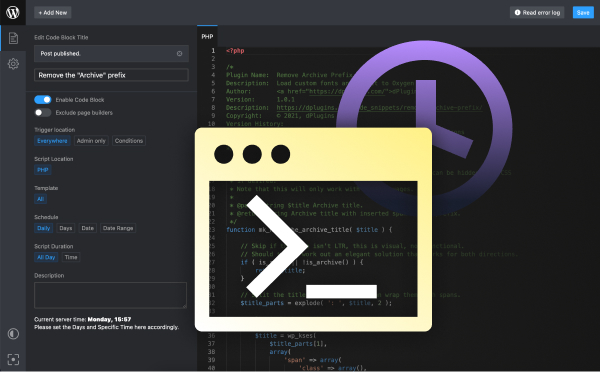
Header and footer code, organized
Scripts Organizer: header, footer and PHP code in one editor, with page conditions, scheduling and on/off toggles.
Related guides
- How to Disable Scripts on Specific WordPress Pages: Unload plugin CSS and JS where they aren't needed.
- How to Load CSS and JavaScript Only Where It's Needed in WordPress: Conditional loading for your own CSS and JS.
- How to Schedule CSS and JavaScript by Date and Time in WordPress: Banners and styles that switch on and off by themselves.
- How to Use SCSS in WordPress Without a Build Tool: Variables, nesting and partials, compiled in WordPress.
Browse all WordPress tutorials.