How to Disable Scripts on Specific WordPress Pages
Most plugins load their CSS and JavaScript on every page of your site, even where they do nothing. A contact form plugin loads its files on your blog posts. A slider loads on pages without a slider. Each file is another request and more code for the browser to parse, and it adds up. The fix is to unload those files everywhere except the pages that need them.
Step 1: find the script and style handles
WordPress loads files through handles: names that plugins register with wp_enqueue_script() and wp_enqueue_style(). You need the handle to unload a file.
The quickest ways to find them:
- View the page source (Ctrl+U) and search for the plugin’s folder name. Stylesheets appear as
<link id="contact-form-css" ...>: the handle is the id without-css. Scripts appear as<script id="contact-form-js" ...>: the handle is the id without-js. - Install Query Monitor (free on WordPress.org). Its “Scripts” and “Styles” panels list every handle on the current page and which plugin added it.
Write down the handles and the pages where the plugin is really used.
Step 2: unload them where they aren’t needed
Hook into wp_enqueue_scripts with a late priority (so the plugin has already added its files), check which page you’re on, and dequeue:
add_action( 'wp_enqueue_scripts', function () {
    // Keep the form files only on the contact page.
    if ( is_page( 'contact' ) ) {
        return;
    }

    wp_dequeue_style( 'contact-form' );   // replace with your handles
    wp_dequeue_script( 'contact-form' );
}, 100 );
Useful WordPress conditions:
| Condition | Matches |
|---|---|
is_front_page() | the homepage |
is_page( 'contact' ) | a page by slug, ID or title |
is_page( [ 'contact', 'quote' ] ) | any of several pages |
is_singular( 'post' ) | single blog posts |
is_archive() | category, tag and date archives |
wp_enqueue_scripts only runs on the front end. For wp-admin screens, use the admin_enqueue_scripts hook instead.
Some plugins register extra files that depend on the main one. If something still loads, look for related handles in Query Monitor and dequeue them too.
Step 3: test
Open the pages where you removed the files and the pages where you kept them. Check the browser console (F12) for errors, and test the feature itself: submit the form, open the slider. If something breaks on a page, that page needs the files, so add it to the condition.
Make one change at a time and keep a list of what you unloaded. If a plugin update renames a handle, the file simply loads again; nothing breaks.
Where to put this code
You have three options:
- Your child theme’s
functions.php. Works, but a typo can take the site down, and the code disappears if you switch themes. - A code snippets plugin. Keeps snippets separate from the theme, with an on/off switch for each.
- Scripts Organizer. Add the snippet as a PHP code block with the Everywhere trigger location. You get a full code editor, can switch any snippet on or off with a toggle, and have a safe mode in case a snippet breaks something.
The same approach works for your own CSS and JavaScript: see how to load CSS and JavaScript only where it’s needed.
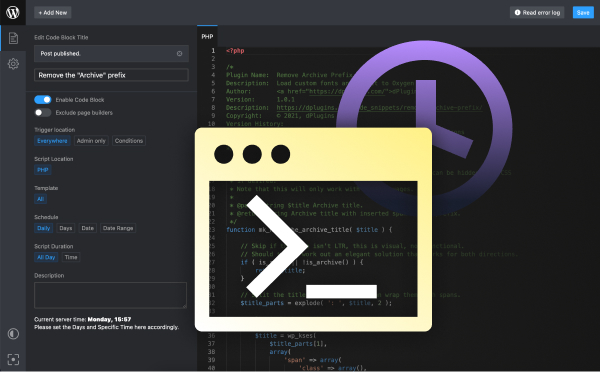
Keep your custom code organized
Scripts Organizer is a full code editor inside WordPress for PHP, CSS, SCSS and JavaScript, with page conditions, scheduling and on/off toggles.
Related guides
- How to Schedule CSS and JavaScript by Date and Time in WordPress: Banners and styles that switch on and off by themselves.
- How to Use SCSS in WordPress Without a Build Tool: Variables, nesting and partials, compiled in WordPress.
- How to Create a Custom Shortcode in WordPress: Reusable [shortcodes] with attributes, done right.
- How to Add Custom Code to WordPress Safely: PHP, CSS and JS in WordPress without breaking the site.
Browse all WordPress tutorials.